How to Create Git Branches
15 minutesModule: How to Branch in Git
Would you rather watch? The basics of this lesson are covered in this video:
So you’re ready to branch off to a safe place where you can do things at your own pace and make mistakes more freely?
You may remember our
minimal-project
from the course on Version Control Basics and
its initial structure (remember the .<lang> extension is a stand-in for
whatever file extension fits the language or languages you’re working with):
minimal-project/
├── README.md
├── LICENSE
├── .gitignore
├── datasets/
│   └── dataset.csv
├── src/
│   ├── import-data.<lang>
│   ├── analyze-data.<lang>
│   └── visualize-data.<lang>
├── tests/
│   └── test_valid-data.<lang>
└── doc/
    └── getting-started.<lang>
Let’s assume you’re now working with large datasets and you’re no longer happy with the time it takes to analyze your data. You want to investigate several ways of speeding up your analysis, while making sure your results stay the same (within a numerical tolerance).
Creating a branch
To create a safe place to experiment with making your analysis faster, we can
create a new branch using a command like git branch name-of-branch:
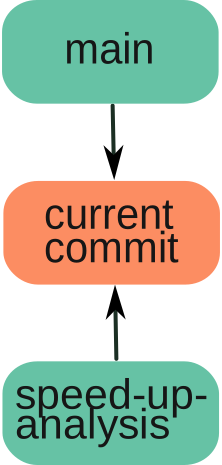
git branch speed-up-analysisThe new branch is a new pointer to your current commit. This is the same commit
your main or master branch is pointing to – at least for now.
Some notes on branches and creating a branch:
In practice, you will also see the term branch used to refer to the whole chain of commits that can be reached from the commit the branch points to. To distinguish the chain of commits from the pointer to the tip of the chain, the pointer will then be called a branch head in this context. But, technically, a branch is just a pointer, and you can follow the chain of parents backwards to see the history of a branch.
Normally, you create a branch from wherever you are at the moment. But you can also create a branch starting from an earlier commit instead of the most recent commit. We won’t address this now, but it can be useful for you to know it’s possible.
Back to our newly created branch, let’s use our every other Git command to check the status of our repository:
> git status
On branch main
nothing to commit, working tree clean
Reading On branch main may make you wonder whether
git branch speed-up-analysis failed to create the new branch.
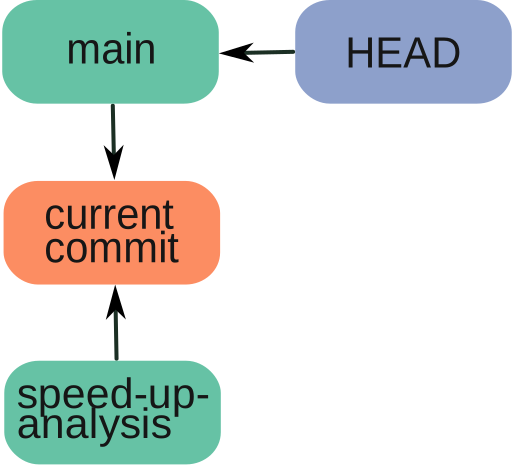
We can run git branch with no arguments to see all our local branches and
which branch we’re on (marked with an asterisk *). Git uses a special pointer
called HEAD to keep track of the current branch.
> git branch
* main
  speed-up-analysis
This shows Git did create the new branch; it just hasn’t switched to it yet,
since HEAD is still pointing to main.
Switching branches
We can switch to the new branch using the
git checkout name-of-branch-to-switch-to command or the more modern
git switch name-of-branch-to-switch-to command:
> git switch speed-up-analysis
Switched to branch 'speed-up-analysis'
> git status
On branch speed-up-analysis
nothing to commit, working tree clean
Alternatively, we could have created the new branch and switched to it at the same time using
- either the
git checkout -b name-of-branch-to-create-and-switch-tocommand, or - the more modern
git switch -c name-of-branch-to-create-and-switch-tocommand.
The -b and -c flags both tell Git to create a new branch. For the latter, we
could have also used the more descriptive --create instead; this is more
readable, though longer to type. There is no full flag for -b though – Git was
created quite some time ago, when only short flags were used; long, readable
options were added later, but not consistently.
Further commits to our new branch
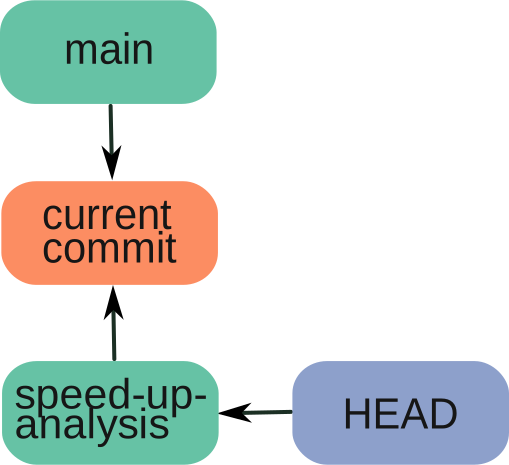
When we created the new branch using git branch speed-up-analysis, HEAD was pointing to main. Now, after switching, it is pointing to the speed-up-analysis branch. Our speed-up-analysis branch is currently pointing to our last commit, to which main is currently also pointing.
A branch is a movable pointer. Further commits will move the speed-up-analysis
branch pointer forward, while the main branch pointer will stay where it was.
For instance, we can add some timing snippets to our code to measure how long the analysis takes and identify which parts are slow. This will help us know where to focus our efforts.
As soon as we have committed our changes, the speed-up-analysis branch will
have moved forward:
> git commit -am "Add timing snippets to measure analysis runtime"
[speed-up-analysis a5efc52] Add timing snippets to measure analysis runtime
 1 file changed, 2 insertions(+)
This means our two branches are no longer pointing to the same commit. We can
check this using, for instance, the git log --oneline -2 command, to show our
last two (-2) commits in a compact form (--oneline).
> git log --oneline -2
a5efc52 (HEAD -> speed-up-analysis) Add timing snippets to measure analysis runtime
74a2b64 (origin/main, main) Some-good-commit-message
Let’s decode the first line:
a5efc52– this is the commit hash of our last commit.(HEAD -> speed-up-analysis)– this means we are currently on the branchspeed-up-analysisand the commita5efc52is the latest commit on this branch.Add timing snippets to measure analysis runtime– this is our commit message.
The commit on the second line has two labels:
main– this is our localmainbranch, and it points to commit74a2b64.origin/main– this is our remote-trackingmainbranch (notice the name is prefixed by the label of the remote –origin/), which also points to commit74a2b64. The two branches are perfectly in sync with each other, and they are both behind ourspeed-up-analysisbranch by one commit.
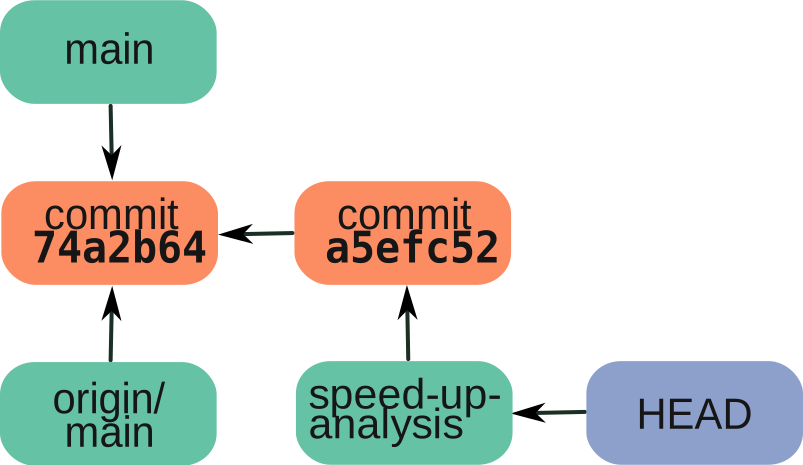
Putting it all together, this means our current branch is ahead of our main
branch by one commit (a5efc52) and 74a2b64 is the commit where we branched
off main.
We’ll look at the simplest form of merging our changes in the next module.